
Silk Mobile
Table of Contents (Homepage)
- Overview
- Setting Up
- Getting Started
- How To
- Connecting Devices And Emulators
- Preparing Applications For Testing
- Managing Applications
- Recording Tests
- Working With Test Commands
- Adding Commands To Your Scripts
- Object Commands
- Click
- ClickCoordinate
- ClickIn
- ClickOffset
- Drag
- ElementGetProperty
- ElementGetTableRowsCount
- ElementListPick
- ElementListSelect
- ElementListVisible
- ElementScrollToTableRow
- ElementSendText
- ElementSetProperty
- ElementSwipe
- ElementSwipeWhileNotFound
- GetAllValues
- GetElementCount
- GetElementCountIn
- GetTextIn
- IsElementBlank
- IsElementFound
- IsFoundIn
- LongClick
- RunNativeAPICall
- SendWhileNotFound
- VerifyElementFound
- VerifyElementNotFound
- VerifyIn
- WaitForElement
- WaitForElementToVanish
- GetCoordinateColor
- DragDrop
- Application Commands
- Device Commands
- Web (Hybrid) Specific Commands
- Utilities Commands
- Monitoring Commands
- Configuration Commands
- ExtractLanguageFiles
- SetDefaultClickDownTime
- SetDefaultTimeOut
- SetDefaultWebView
- SetDragStartDelay
- SetInKeyDelay
- SetKeyToKeyDelay
- SetLanguage
- SetLanguagePropertiesFile
- SetShowImageInReport
- SetShowPassImageInReport
- SetShowReport
- SetSpeed
- SetThrowExceptionOnFail
- SetWebAutoScroll
- StartStepsGroup
- StopStepsGroup
- TextFilter
- Miscellaneous Commands
- Controlling Element Identification Rules
- Editing Test Objects
- Executing Test Scripts
- Report Of Executed Test
- Working From Code Environment
- Continuous Integration
- Layout Verification Tests
- Use Device Vitals Monitors
- Troubleshooting
- Terminology
Connecting An iOS Device
With Silk Mobile you can fully control the iOS application being tested as well as the device's springboard. Controlling the device's springboard enables actions such as: Changing the device settings, Interaction with non-instrumented application (like SMS, Contacts, Dialer…), Launch and kill application life-cycle.
Note: If your only requirement is to test inside your application (without controlling the device's springboard), you can follow the simple one step connectivity process described as Option B below.
To connect an iOS device so that you can both test applications as well as control the device's springboard:
Step 1: Prerequisites
-
Install iTunes onto your computer ( while Silk Mobile is closed so the USB drivers can update)
-
Connect the device via USB to your computer.
Step 2: In Silk Mobile go to Device Manager and click the Add Device icon and select iOS Device.
Step 3: In the dialog box now displayed, activate the Enable non-instrumented mode check box.
From version 8.7 and above only non-instrumented mode will be available for cloud iOS devices.
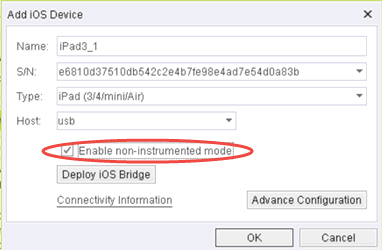
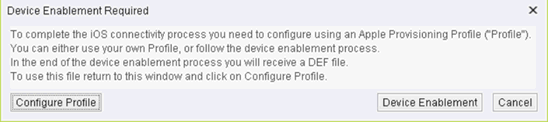
Step 4: Having selected the check box above, the following announcement will appear. Click Device Enablement .
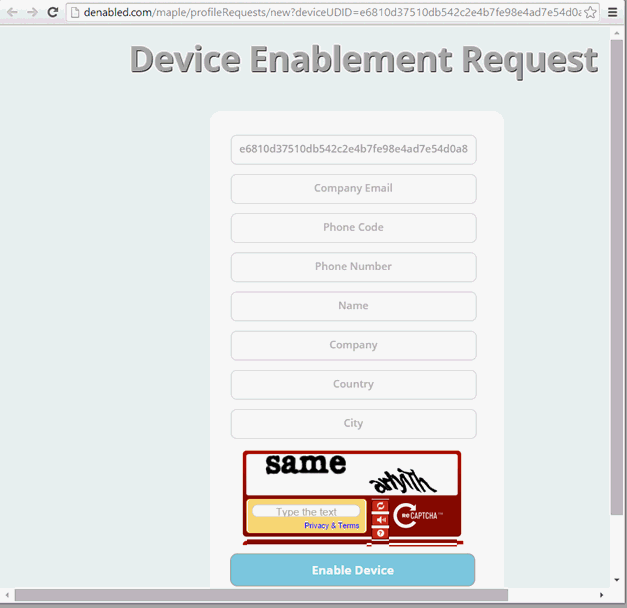
Step 5: At this stage, you will be redirected to a third-party website (denabled.com) where the following browser window opens and displays the form seen below. Fill in the details and click Enable Device . Then follow the instructions will be displayed.
Step 6: After completing the instructions, you should receive by email a DEF file (Device Enablement File) from the third-party website.
Step 7: In the "Tools" menu, select iOS Sign Configuration:
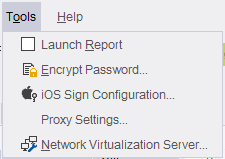
Step 8: In this dialog you will be able to view all the configured provision profiles you have and the devices they hold in them:
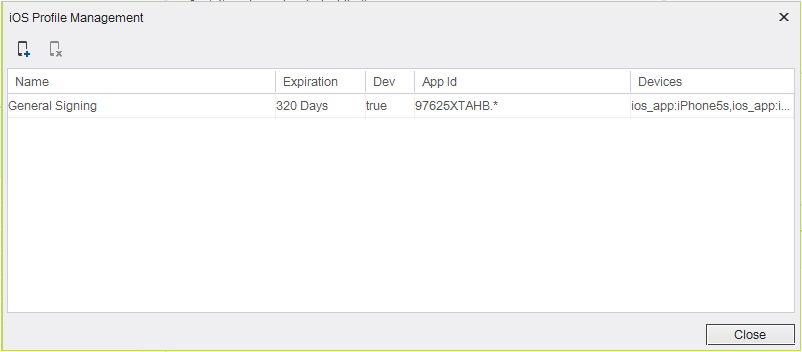
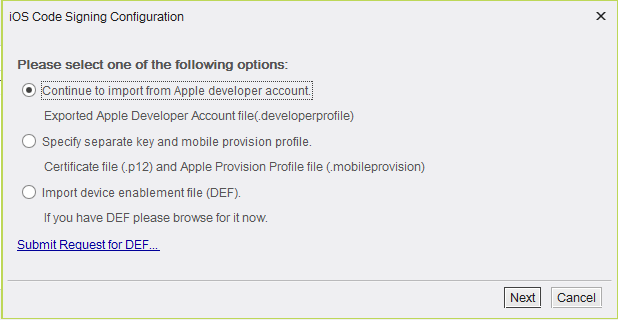
Step 9: Clicking on the "Import" button will open the following window and now f ollow the steps on iOS sign configuration page :
Step 10: In Device Manager, select the device which you initially connected at the start of this procedure and click the Edit Device icon.
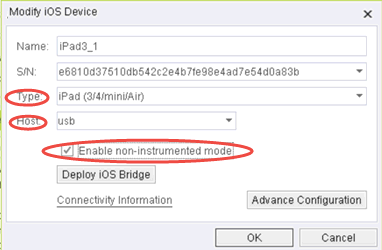
Step 11: In the Modify iOS Device dialog box now displayed, verify that the:
-
Type of the device is correct
-
Host featured is usb
-
Enable Non-Instrumented Mode check box is selected
Note: If profile is already configured to the device, checkbox will be enabled by default.
Step 12: Click OK .
The device is now available on the Device List and has the status of Ready.
Step 13: To open the device reflection on your computer's screen, click the Open Device button.

Option B:
To connect an iOS device only when you need to test applications (but don't need to control the device's springboard):
Step 1: Install iTunes onto your computer (while Silk Mobile is closed so the USB drivers can update).
Step 2: Connect Silk Mobile to your device.
-
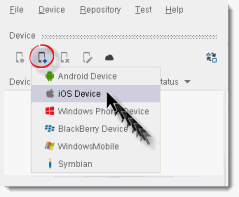
In Silk Mobile that has been installed on your Windows station), go to the "Device" tab, click the 'Add Device' icon and select 'iOS Device'.
-
Verify that the device type is correct and that the host featured is USB.
-
Make sure the check box Enable Non-Instrumented Mode is Disabled .
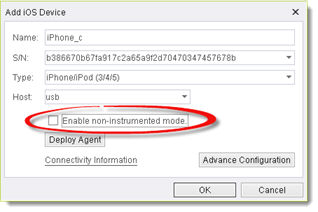
Step 3: The device is now available on the device list, with the status of the device Ready . Click on the Open Device button to open the device reflection on the screen. The iOSBridge application should launch, and you will be able to launch and test on an instrumented application.
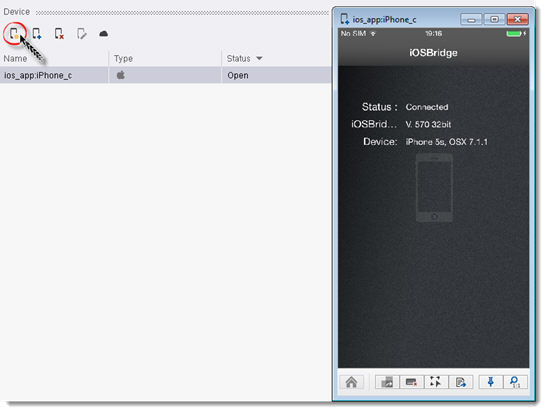
-
If an instrumented application is not running in the foreground, the device will be disconnected and you will not be able to control it using mouse and keyboard. You will have to close the window, make sure the instrumented application is opened on the device and then open screen again.
Trying to open the device without an instrumented application running will result in the reflection not opening at all. -
Make sure to always be within the instrumented application. When running tests on the device, starting point should be when application is open.
-
The iOS bridge can provide a full cycle of automation. You can open/Close application (See iOSBridge page for further information).
-
In order to run web tests, either the iOS bridge should be on the foreground or the instrumented browser (See Launch (URL) command page for further information)
-
iOS images caching that was introduced in 8.6 version can be disabled with following flag in app.properties file: enable.ios.images.caching=false